imgskit Journal
Turn Any Photo into Pixel Art Online — Perfect for Game Assets & NFTs
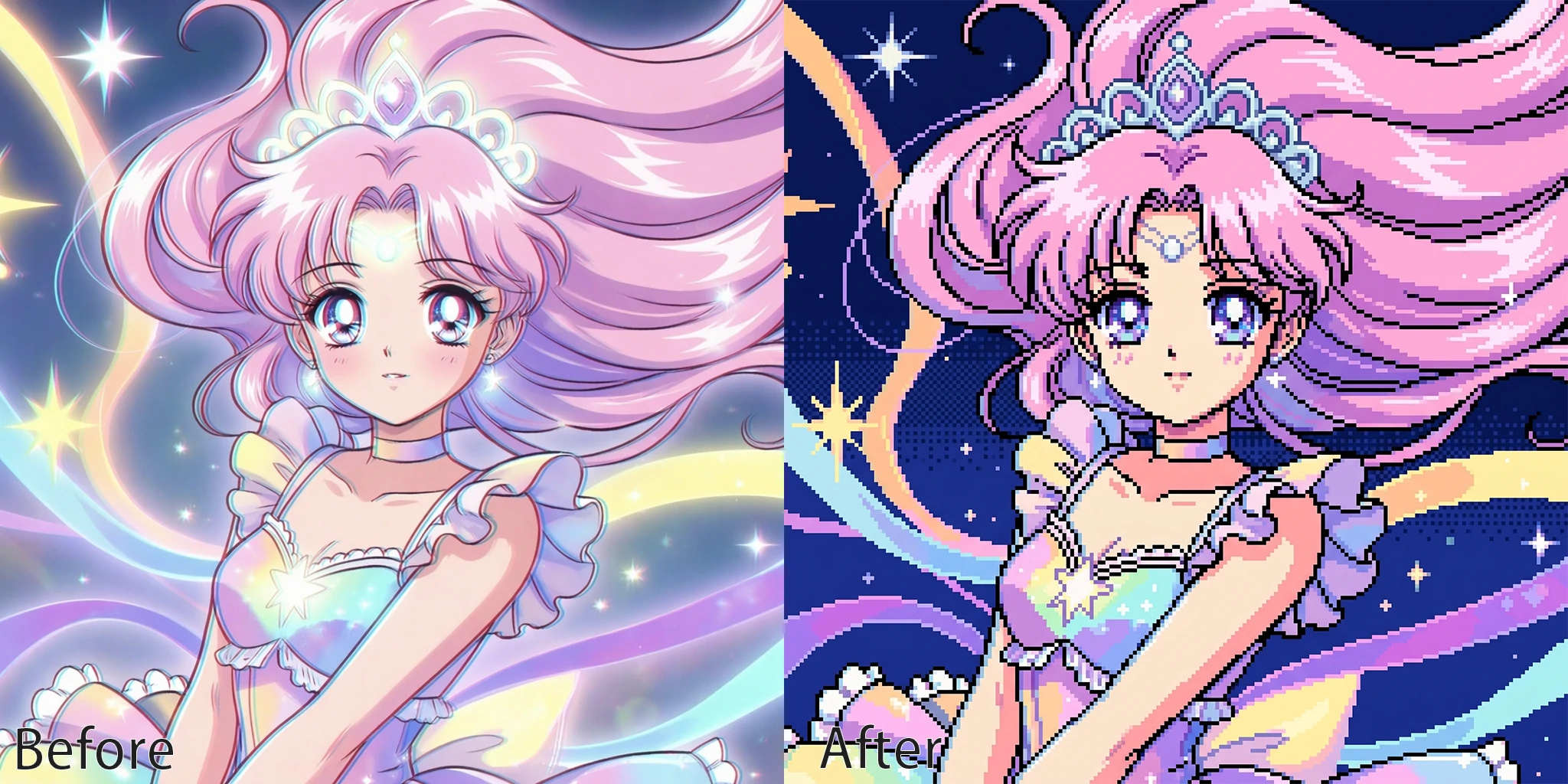
Remember the chunky, colorful graphics of early video games? That distinctive look — bold pixels, limited palettes, unmistakable charm — never really went away. If anything, pixel art is more popular today than it's been in decades.
Whether you're an indie game developer building assets, a creator making a standout NFT collection, or someone who just wants a unique avatar, converting a photo into pixel art used to require specialized software and a real investment of time. In 2026, you can do it online, in seconds, with results powered by state-of-the-art AI models — no software installation, no design skills required.
This guide covers everything you need to know about pixel art — why it's having a major moment, who's using it, and how to turn any image into pixel art with imgskit's AI-powered pixel art converter.
Why Pixel Art Is Having a Renaissance
Pixel art started as a technical constraint. Early hardware could only display images made of large, visible pixels — so developers made a virtue of necessity, crafting iconic characters and worlds within those limitations.
Today, those limitations are gone. Pixel art is a deliberate aesthetic choice — and one with serious cultural staying power.
In gaming, the indie game explosion brought pixel art back to the mainstream. Titles like Stardew Valley, Undertale, and Celeste proved that players actively prefer the style — not despite its simplicity, but because of it. For indie developers, pixel art is also practical: it's faster to produce, easier to animate, and has a timeless quality that higher-fidelity graphics can actually lack.
In the NFT and digital collectibles space, pixel art became the defining visual language almost from the start. Projects like CryptoPunks established a template that thousands of collections have followed. The chunky, grid-based aesthetic translates perfectly to profile pictures, collectible series, and on-chain art.
In branding and social media, pixel art avatars and icons have become a recognizable signal — retro credibility, gaming culture, creative individuality. Communities on Discord, X (formerly Twitter), and Twitch have made pixelated profile pictures a visual shorthand for a certain kind of internet-native identity.
The demand for pixel art tools — specifically ways to convert regular photos and images into pixel art — has grown steadily alongside all of this.
Who Uses a Pixel Art Converter?
The use cases are broader than you might expect:
Indie Game Developers Building a game from scratch means sourcing or creating a huge volume of assets — characters, backgrounds, objects, UI elements. A pixel art converter lets developers take reference photos or concept sketches and quickly generate pixelated versions to work from, dramatically speeding up the asset creation process.
NFT Creators & Digital Artists Launching a pixel art NFT collection requires consistency across dozens or hundreds of images. Converting a base image to pixel art, then using that as a template for variations, is a common workflow. The pixelation effect creates the visual cohesion that makes a collection feel intentional.
Gamers & Content Creators Custom pixel art avatars are popular across gaming platforms, streaming, and social media. A pixelated version of your own face — or your pet, or your logo — makes for a distinctive profile picture that stands out in a sea of standard photos.
Designers & Brand Creatives Retro aesthetics are a recurring trend in graphic design. Pixel images add personality to merchandise, event posters, sticker packs, and social content. A pixel art converter gives designers a fast starting point they can refine further.
Hobbyists & Enthusiasts Sometimes you just think pixels look cool. Converting a favorite photo into pixel art for a phone wallpaper, a print, or a fun profile picture doesn't need a professional justification.
How to Convert an Image to Pixel Art with imgskit
imgskit's pixel art converter is built for speed and creative control — no software download, no technical setup needed.
Step 1: Open the Tool
Head to imgskit.com/image-pixelate. You'll see a clean, intuitive interface ready to go.
Step 2: Upload Your Photo
Drag and drop your image onto the canvas, or click to browse your files. JPG, PNG, and WEBP formats are all supported. The tool works best with images that have a clear subject — portraits, characters, objects, logos.
Step 3: Choose Your AI Model
This is where imgskit stands out from basic pixelation tools. You can select from multiple AI models — including Gemini 3.1, GPT Image 2, and Gemini 3 Pro — each producing a distinct visual result. Want a cleaner, more graphic look? A different model might suit you better than the default. Experimenting with models takes seconds and the difference can be significant.
Step 4: Set Your Pixel Style and Color Style
Choose your Pixel Style — 32-bit, 48-bit (default), or 64-bit — to control how large and blocky the individual pixels appear. Then select a Color Style to shape the overall palette and mood of the output. These two controls together give you real creative range without requiring any manual pixel work.
Step 5: Generate and Download
Hit Start Generation and let the AI do its work. Preview the result, and when you're happy with it, download your pixel art as a PNG — ready to use as a game asset, NFT base image, avatar, or design element.
What Makes imgskit's Pixel Art Converter Different
Most online pixelation tools work by simply downsampling your image — a purely mechanical process. imgskit takes a different approach: AI models interpret your photo and render it as pixel art, which means the output has more artistic coherence and handles complex details like faces, textures, and lighting far more gracefully.
The ability to switch between models — Gemini 3.1, GPT Image 2, and Gemini 3 Pro — also means you're not locked into a single aesthetic. A portrait converted with one model might look like a polished game sprite; the same image through another might feel more like hand-crafted retro art. That creative flexibility, combined with Pixel Style and Color Style controls, makes it a genuinely useful tool for professional workflows, not just casual experimentation.
Tips for Getting Great Pixel Art Results
Start with a clean, high-contrast subject. Images where the main subject is clearly separated from the background pixelate much more cleanly. A portrait against a plain wall, or a product on a neutral background, will give sharper, more readable results than a busy scene.
Remove the background first. For characters, avatars, or object assets, removing the background before pixelating gives you a clean, transparent-background pixel image — much more versatile for game development or NFT work. imgskit's background remover handles this in seconds before you move to the pixel art step.
Try multiple AI models on the same image. Because each model renders differently, running the same photo through two or three models and comparing results is the fastest way to find the aesthetic that fits your project. It takes under a minute and the variation can be striking.
Match pixel style to your intended use. Larger pixel sizes read better at small display sizes — ideal for game sprites, icons, or avatar thumbnails. Smaller pixel sizes preserve more detail, which suits posters, NFT artwork, or any context where the image is viewed at full size.
Use the output as a starting point. Professional pixel artists often use a converter to generate a rough base, then manually refine key details — cleaning up edges, adjusting specific colors, adding highlights. The AI does the heavy work; you can polish from there in a tool like Aseprite.
Pixel Art for NFTs: What You Need to Know
If you're creating pixel images for an NFT project, a few considerations are worth keeping in mind:
Consistency is everything. A successful NFT collection looks cohesive — all pieces feel like they belong to the same visual universe. Using the same AI model, Pixel Style, and Color Style settings across your images is the most important factor in achieving this.
Transparent backgrounds matter. Most NFT platforms and wallets display artwork on various backgrounds. Exporting pixel art with a transparent background (PNG) gives you maximum flexibility for how your work appears across different contexts.
Consider the display size. NFT thumbnails are often small. Your pixel art should be readable and recognizable at thumbnail scale — which generally means keeping pixel sizes on the larger end for avatar-style collections.
Frequently Asked Questions
What AI models are available? imgskit currently supports Gemini 3.1, GPT Image 2, and Gemini 3 Pro. Each model produces a distinct visual style, so it's worth trying a few on the same image to see which suits your project best.
What image formats can I upload? JPG, JPEG, PNG, and WEBP are all supported as input formats. Output is exported as PNG.
Can I control how pixelated the result looks? Yes. The Pixel Style control offers three options — 32-bit, 48-bit (default), and 64-bit. Lower bit values produce larger, blockier pixels for a classic retro look; higher values retain more detail and a finer pixel grid. The Color Style control shapes the overall palette and tone.
Does it work for logos and non-photographic images? Absolutely. The converter works on any image — photos, illustrations, logos, screenshots. Bold, simple shapes tend to produce the most readable pixel art results regardless of source type.
Do I need to install anything? No. The entire process runs in your browser — upload, configure, generate, and download without leaving the page.
Ready to Pixelate?
Pixel art has gone from a hardware limitation to a genuine creative movement — one that spans gaming, digital art, NFTs, branding, and personal expression. And with an AI-powered online pixel art generator, turning any photo into pixel art takes about as long as it takes to upload a file.
Whether you're building game assets, launching a collection, or just want a distinctive avatar, imgskit's convert image to pixel art tool gives you professional-quality results and real creative control — without the learning curve of dedicated pixel art software.
No downloads. No manual pixel-by-pixel work — unless you want it.
Convert your image to pixel art with imgskit →
imgskit also offers AI-powered background removal, watermark removal, object cleanup, photo colorization, image enhancement, and AI image generation.