imgskit Journal
AI Image Enhancer — Sharper, Clearer Photos Up to 4K in Seconds
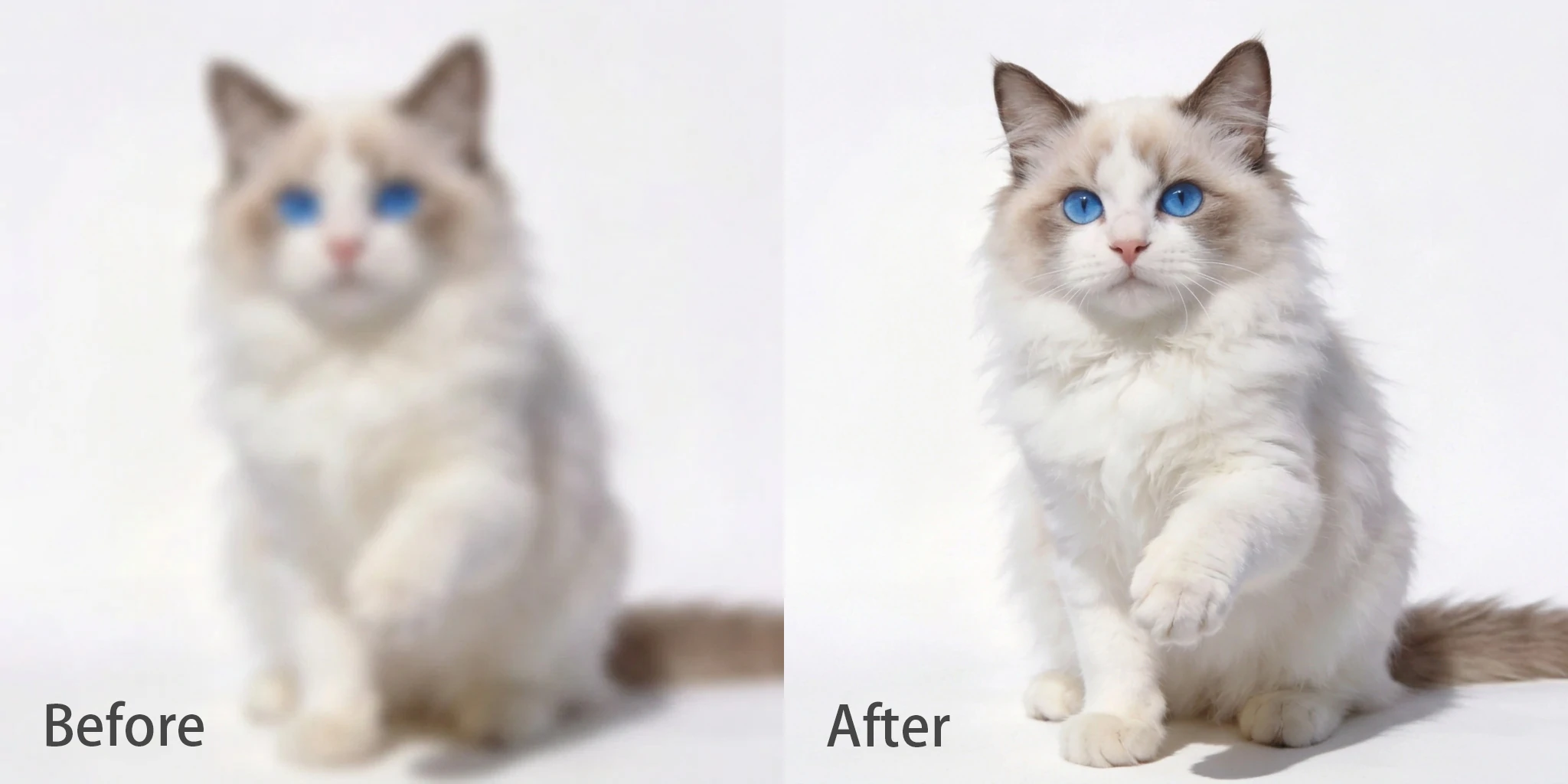
Every photographer knows the feeling. You captured a moment perfectly — the composition, the timing, the light — but the image itself came out soft. A little blurry. Lower resolution than you needed. Not quite good enough to print, post, or use professionally.
It used to mean the photo was a write-off. Today, AI image enhancement can recover detail, sharpen edges, correct noise, and upscale resolution in a matter of seconds — turning an image that wasn't quite there into one that is.
This guide covers what AI image enhancement actually does, who it's for, and how imgskit's AI image enhancer can turn a photo that wasn't quite there into one that is.
What Is an AI Image Enhancer?
An AI image enhancer is a tool that uses artificial intelligence to improve a photo's quality — making it sharper, cleaner, more detailed, and higher resolution. The specific problems it addresses include:
Low resolution — a small image that becomes pixelated or blurry when displayed or printed at larger sizes.
Blur and softness — caused by camera shake, an out-of-focus shot, or simply a lens or sensor that couldn't capture fine detail.
Noise and grain — the speckled, grainy texture that appears in photos taken in low light or at high ISO settings.
Compression artifacts — the blocky, degraded look that appears in images that have been heavily compressed (common with images downloaded from the web or shared repeatedly via messaging apps).
Older approaches to these problems — sharpening filters, bicubic upscaling, noise reduction algorithms — worked by applying mathematical transformations to existing pixel data. They improved images incrementally, but couldn't add genuine detail that wasn't there.
AI enhancement works differently. Models trained on enormous volumes of high-quality images learn what photographic detail looks like — textures, edges, facial features, natural gradients — and use that knowledge to reconstruct and add detail rather than just manipulating existing pixels. The result is a meaningfully higher quality output, not just a processed version of the same data.
Who Needs an Image Enhancer AI Tool?
Photographers and creatives Not every shot comes out at the quality you need. An otherwise great photo that's slightly soft, underexposed, or lower resolution than intended can be recovered — using AI to enhance the image rather than discarding it or going back to reshoot.
E-commerce sellers Product images need to look sharp and professional. Photos taken on a phone or in less-than-ideal conditions often need enhancement before they're ready for a listing. A blurry product image loses sales; a sharp, clear one builds confidence.
Social media creators and content teams Older images, screenshots, or low-resolution assets that need to be reused often don't hold up visually. Enhancement brings them up to the standard expected on modern high-resolution displays.
Print and design work Images that look fine on screen can fall apart when printed at larger sizes. Upscaling to 4K output gives you the resolution needed for posters, banners, merchandise, and other print applications.
Everyday users Old family photos, cherished memories captured on older phones or cameras, scanned prints — personal images often sit below the quality threshold that modern screens demand. Enhancement gives them a second life.
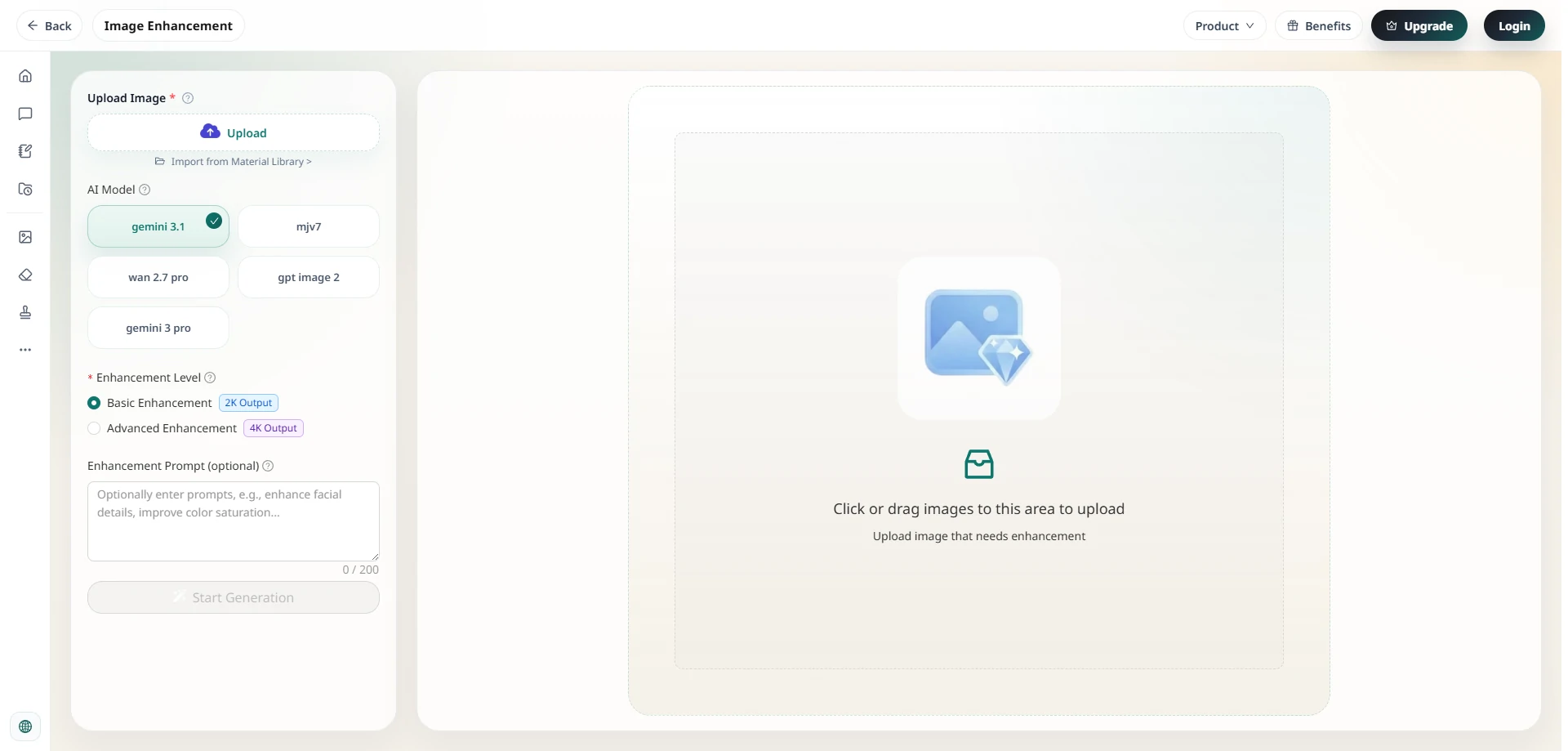
How to Enhance Image Quality with imgskit
Head to imgskit.com/image-enhance to get started.
Step 1: Upload Your Image
Drag and drop your photo onto the canvas, or click to upload. You can also import directly from your Material Library if you've used imgskit before.
Step 2: Choose Your AI Model
imgskit offers four AI models for image enhancement — Gemini 3.1, MJv7, GPT Image 2, and Gemini 3 Pro. Each model approaches enhancement differently and may perform better on certain types of images. Gemini 3.1 is the default and a strong starting point for most photos; trying an alternative model on the same image takes seconds and can sometimes yield noticeably better results.
Step 3: Select Your Enhancement Level
Choose between two output levels:
- Basic Enhancement — outputs at 2K resolution. Suitable for web use, social media, and standard screen display.
- Advanced Enhancement — outputs at 4K resolution. The right choice for print work, large-format display, or any context where maximum detail matters.
Step 4: Add an Enhancement Prompt (Optional)
An optional prompt field lets you specify what you want the AI to focus on — for example, "enhance facial details", "improve color saturation", or "reduce noise and sharpen edges". This is particularly useful when you have a specific aspect of the image you want prioritized.
Step 5: Generate and Download
Hit Start Generation and let the AI process your image. Preview the result and download when you're satisfied.
Basic Enhancement vs. Advanced Enhancement — Which Should You Choose?
The right choice depends on how and where the image will be used.
Choose Basic Enhancement (2K) when:
- The image will be used on social media, websites, or digital presentations
- You need a fast turnaround and 2K resolution is sufficient for the output size
- The original image is already reasonably good quality and just needs a polish
Choose Advanced Enhancement (4K) when:
- The image will be printed — posters, canvas prints, merchandise, marketing materials
- It will be displayed on a large or high-resolution screen
- The source image is low resolution and needs significant upscaling
- Maximum detail and sharpness are priorities
For most professional and commercial use cases, Advanced Enhancement at 4K is worth the extra processing step.
What the Enhancement Prompt Can Do
The optional Enhancement Prompt is a feature that sets imgskit's tool apart from basic one-click upscalers. Rather than applying a generic enhancement pass, you can tell the AI what to prioritize in your specific image.
Some useful prompt examples:
- "Enhance facial details and skin texture" — for portrait photos where faces are the main subject
- "Sharpen edges and enhance texture detail" — for landscape or product photos that need more definition
- "Reduce noise and sharpen edges" — for low-light photos with grain and soft detail
- "Restore clarity and remove compression artifacts" — for images that have been heavily compressed or repeatedly shared
- "Enhance product texture and surface detail" — for e-commerce product photography
The prompt accepts up to 200 characters, so you have room to be specific about what the image needs.
Frequently Asked Questions
What types of images benefit most from enhancement? Low-resolution photos, images taken in poor lighting, heavily compressed files (from repeated social media sharing or messaging app compression), and older photos from lower-quality cameras or phones all see the most significant improvement. Already high-quality images may see more subtle changes.
What's the difference between the AI models? Each model — Gemini 3.1, MJv7, GPT Image 2, and Gemini 3 Pro — uses a different underlying approach to AI image enhancement. Results can vary by image type and content. If the default model doesn't give you the result you want, trying an alternative model on the same image is quick and often worthwhile.
Can I enhance product photos for e-commerce? Yes. Image enhancement is one of the most common e-commerce workflows — taking product photos shot on a phone or in non-ideal conditions and bringing them up to the sharpness and clarity that professional listings require.
Is the Enhancement Prompt required? No. The prompt is entirely optional. The AI will apply a general enhancement pass without it. The prompt is useful when you have specific qualities you want emphasized or particular problems you want addressed.
What output formats are available? Enhanced images are exported as high-quality PNG files at your chosen output resolution (2K or 4K).
Ready to Enhance Your Images?
Whether it's a blurry photo you thought was unusable, a low-resolution image that needs to print large, or a product shot that just isn't quite sharp enough — AI image enhancement recovers what's there and adds what's missing.
No Photoshop. No manual sharpening sliders. No compromises on the images that matter.
Enhance your image quality with imgskit →
imgskit also offers AI image generation, background removal, watermark removal, pixel art conversion, photo colorization, and object removal.